Create a resource rule
Resource rules protect access to your applications by requiring users to pass a predetermined risk assessment and authentication requirements. You can create a new resource rule for an application or clone an existing resource rule.
Resource rules use an authentication flow to determine how a user authenticates to a protected resource. You can create authentication flows as you build a resource rule or create them in advance. See Create authentication flows for more information.
Attention: Before you begin, it is important to review the information on the Create resource rules page. This page provides more information on how resource rules work, features available, and details about limitations. It is also important to review the information on this page, especially the "Terminology and tips" section.
Terminology and tips
Before you begin building your resource rule, review the following terminology and tips.
GraphsGraphs
When you build a resource rule, you create a graph. The following explains the terms used in the graph.
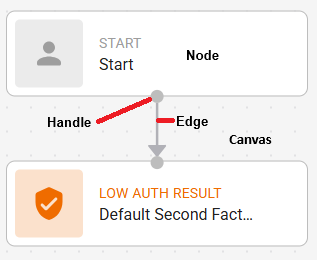
Node—The rectangle components in a graph.
Edge—The line that connects two nodes.
Handle—The connection point on a node where edges can be attached (the grey circle on the top or the bottom on the node).
Canvas—The empty space in the graph building area.
Settings—The configuration options for a node added to a resource rule graph. They appear on the side of the graph area when a node is selected.
Side BarSide Bar
The Side Bar appears at the side of your graph area.

The Side Bar includes the following icons:
 Add button.
Click + to display the Task menu.
Click + again or click anywhere in the Canvas to hide the Task menu.
The Task menu allows you to add the following nodes to your graph:
Access Filters
Authentication Context ReferencesAuthentication Context References
Domain-based IdPDomain-based IdP This resource rule can only be considered for matching domain requirements. Available for the User, User Edit, and Administrator portals, and SAML and OIDC and OAuth applications.
Risk Factors (add the following Risk Factors)
Device VerificationDevice Verification
Source IP AddressSource IP Address
Location HistoryLocation History
Machine AuthenticationMachine Authentication
—Configure the risk assessment.
—A
 Tidy button—Click to improve the appearance of your graph.
 Undo a change.
 Redo a change
Error messages
 No errors found
-or-
 Error detected
Building tipsBuilding tips
Click in the Canvas of the graph to display the General Settings.
Click a Node to display the settings for the node.
To Delete a node, select it in the graph and click Delete, or click the node to display the settings, and click the Delete icon in the settings panel.
To delete a risk factor, you can delete it from the graph or click the node to display the risk factor setting and click the Delete icon.
To hide the Task menu, click anywhere in the Canvas.
Click Save to save your changes..
As you add nodes to the resource rule, click the Tidy button to clean the graph and reduce the space it takes on the Canvas.
To add multiple nodes to a flow element, for example three different Risk Factors, click the Task menu and add them to the Canvas first before you arrange them and connect them with edges to the connecting node in the flow (either Start or Access Evaluation).
Hover over a node or the edge between two nodes to see the  symbol and then click the add symbol to see the nodes that you can add to the node or between the two nodes.
For example, you added a Geolocation risk factor and connected it to the Start menu, but now you want to add a Group Access Control. Use the add button on the edge between Geolocation and Start to directly add an Access Filter node between them.
Topics in this section: