Add Access Filters
AAccess Filters further streamline the users that can access the protected resource with this resource rule.
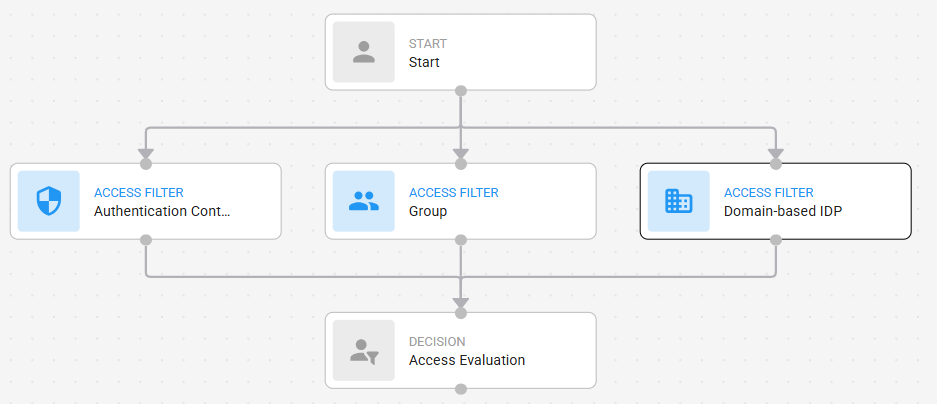
Connect Access Filters to the Start node and then connect them to the Access Evaluation node as shown in the following figure.
Authentication Context Reference (ACR)
This setting is available for resource rules that protect SAML, OIDC and OAuth, Authentication API, and Identity as a Service applications. It allows a user to authenticate using this resource rule if the authentication request from the client request contains specified Authentication Context Reference (ACR) values, any ACR value, or does not include an ACR value This feature allows the client to influence how the user is authenticated based on ACR requests. For more information, see Add Authentication Context References.
Configure Authentication Context ReferenceConfigure Authentication Context Reference
Click the ACR Access Filter node. The Authentication Context Reference settings appear.
Click ACR or No ACR, as required.
If you click ACR, the resource rule evaluates users with an authentication context specified in their requests.
If you click No ACR, the resource rule evaluates users without an authentication context specified in their requests.
Select the ACR to Add from the drop-down list.
Note: If you add an ACR node and do not specify an ACR, then by default all requests with any ACR are considered by the resource rule.
Domain-based IDP
This setting is available for resource rules configured for the User, User Edit, and Administrator portals, and SAML and OIDC and OAuth applications., It allows a user to authenticate using this resource rule if they belong to a specified Domain-based IDP. For more information, see Manage Identity Providers and webhooks.
Configure a Domain-based IdPConfigure a Domain-based IdP
Click the Domain-based IdP Access Filter node. The Domain-based IdP settings appear.
Click Domain-based IdP or No Domain-based IdP, as required.
If you click Domain-based IdP, the resource rule evaluates users associated with Domain-based IdPs.
If you click No Domain-based IdP, the resource rule evaluates users not associated with any Domain-based IdPs.
Select the Identity Provider to Add from the drop-down list. See Manage Identity Providers and webhooks.
Note: If you do not add a Domain-based IdP, by default the resource rule evaluates users associated with any Domain-based IdP.
Group
Use this setting to restrict access to users belonging to specific groups. If you want all users to be evaluated by the resource rule, do not add this feature to the graph.
Add a group access filterAdd a group access filter
Click the Group Access Filter node. The Group settings appear.
Select the Group to Add from the drop-down list.
Repeat this step to add more groups.