Using authenticators
An authenticator is a security measure that protects a resource from unauthorized access. Authenticators require you to provide information (such as a password) or respond to an action (such as entering a one-time password). Once you successfully respond to the authentication request, you can access your protected resource.
You might be assigned multiple authenticators to allow you to sign in to Identity as a Service and your applications. For example, if you have been assigned a Google authenticator and an Entrust ST authenticator, you can log in to Identity as a Service using either of the authentication responses generated by those authenticators.
Note: Administrators set the authenticators that you can use to access applications. As a result, you might not see the option to add or use all the authenticators described in this User Help. Also, when you log in, you might see a message that tells you that you need to register an authenticator. The following sections provide instructions on how to use and register the different authenticators.
When you log in to Identity as a Service, you enter your User ID on the login page and then respond to the second-factor challenge. Sometimes you need to enter your IDaaS User ID and password and then respond to an authentication challenge.
Note: To use another second-factor authenticator, click the Alternative Authentication link on the second-factor Authentication page and select the Authenticator from the list available.
Click the following links for tips to help you authenticate using the different authenticators.
One-time password authentication challengeOne-time password authentication challenge
One-time password authentication
Enter your username and click Next. You are prompted to enter a one-time-password that is sent to your phone (voice), email, or mobile device (SMS),WeChat app, or WhatsApp app..
Note: If you have multiple OTP delivery options, choose the OTP Delivery Contact. For example, you might have an email, a mobile phone, and an alternate email address available for OTP delivery. Click the preferred OTP delivery method.
Enter the OTP sent to OTP delivery contact.
If your OTP has expired, click Resend OTP to obtain a new OTP.
Click Login to access to the application.
Entrust Identity push authentication challengeEntrust Identity push authentication challenge
Token push authentication
You are prompted to provide an authentication token to access Identity as a Service. A push notification is sent to your Entrust Identity application.
Open the Entrust Identity app.
Unlock (log in) the app.
Tap the Actions icon. It should have a number on it to indicate that there is an action pending.
Tap > next to the item in the actions list. The Transaction page appears.
Tap Confirm. A Confirm Action window appears. A message confirms that the action you chose was completed.
Note: For more help, see the Entrust Identity Online Help available in the app menu.
Token authentication challengeToken authentication challenge
Token authentication
You are prompted to provide an authentication token to log in.
Access your token. You might have a hard token or a soft token such as Google Authenticator or Entrust Identity. If you are using Entrust Identity to obtain a security code, you need to enter your PIN first.
Enter the token code.
Click Login to access to the application.
TokenCR authentication challengeTokenCR authentication challenge
TokenCR authentication
You are prompted to provide an authentication token to log in. The IDaaS login screen provides a response code.
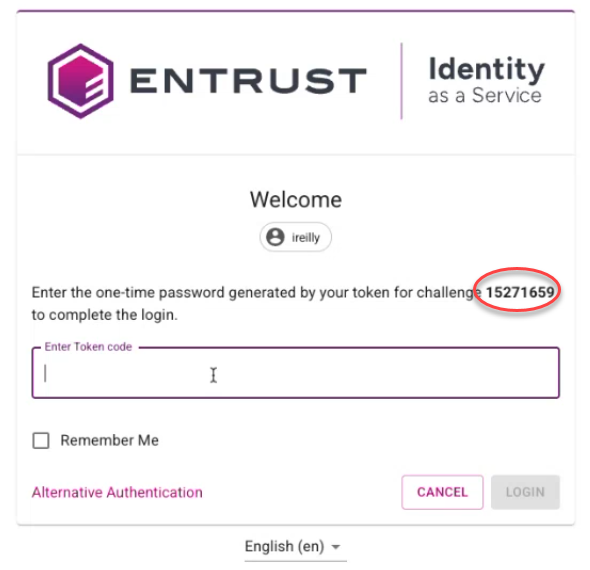
Access your token.
Enter your PIN first.
Enter the response code shown on the IDaaS login screen. The token returns a token code.
Enter token code into the IDaaS log in screen.
Click Login to access to the application.
Entrust Smart Credential authentication challengeEntrust Smart Credential authentication challenge
Entrust Smart Credential authentication
You are prompted to confirm an authentication request on your Entrust Smart Credential to access Identity as a Service. A push notification is sent to your Entrust Smart Credential application.
Open your Mobile Smart Credential app on your mobile device.
Unlock (log in) your app.
Read the challenge message.
Select one of the following options and then tap Yes to confirm the action:
Select Cancel to deny completion of the operation.
Select Concern to stop completion of the operation and bring the incident to the attention of the identity provider.
Select Confirm to confirm the authentication.
Note: For more help, see the Entrust Smart Credential app Online Help available in the app menu.
Grid Card authentication challengeGrid Card authentication challenge
Grid card authentication
You are presented with a grid column and row value that corresponds to a specific cell. The grid card also shows the expiry date. Once you have reached the expiry date you can no longer use the grid card.
Enter the Grid Card values.
Reference the grid of the Grid Card you have been assigned. The following is a sample grid card. Using this example, if you are prompted for A1 B3 D2, your response would be KM WN 2H.
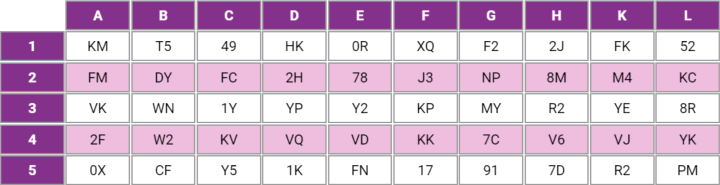
Click Login to access to the application.
KBA authentication challengeKBA authentication challenge
Knowledge-based authentication
You are prompted to enter answers to the questions that appear on your Identity as a Service authentication page.
Enter the answer to each question listed.
Tip: These are the answers you provided when KBA was assigned to you. The number of questions you need to answer for successful authentication has been set by your administrator.
Click Login to access to the application.
Temporary Access Code challengeTemporary Access Code challenge
Temporary access code authentication
You are prompted to enter a temporary access code.
Enter the temporary access code.
Click Login to access to the application.
You are logged in to your account.
Passkey/FIDO2 token authenticationPasskey/FIDO2 token authentication
Passkey/FIDO2 token authentication
Passkey/FIDO2 token prompts you to respond. Depending on the type of Passkey/FIDO2 token you have, this might involve pressing a button on a token in your USB drive or scanning a QR code, for example.
Respond to the authentication prompt.
Note: If you do not respond within the timeout period, click Retry.
You are logged in to your account.
Passkey authenticationPasskey authentication
Passkey authentication
On the IDaaS login page, click Passkey.
Respond to the prompts on the browser. Each browser is different, so respond to what you see on the screen.
Press the flashing button on your FIDO2 token to authenticate.
Note: If you do not press the button on your FIDO2 token within the timeout period, click Retry.
You are logged in to your account.
On the IDaaS screen, click the User Certificate Authentication button on the log in screen. If you do not see it, click Alternate Authentication to go to the Alternative Authentication screen and from there click the User Certificate Authentication button.
A prompt appears asking you to select the certificate you want to use to sign-in.
If you have more than one certificate, select the certificate that is used to sign into the application.
Click OK on the prompt. You are redirected to the application.
Face Biometric authenticationFace Biometric authentication
Log in to your IDaaS account with your User ID and click Next.
If required, click Alternative Authentication.
Click Face Biometric.
Follow the screen prompts to authenticate using Face Biometric.