Mac: Configure the screen to lock when a smart credential is disconnected
The typical scenario for use of mobile smart credential login to a Mac computer is the following:
The computer logs the user in (after entry of a correct PIN) when the user is within BLE range of the computer
The computer locks the computer screen when the user disconnects the smart credential through the Entrust Identity mobile app.
Complete the steps that follow to configure the screen locking behavior.
Prerequisites
A user with administrative privileges must be logged in using the mobile smart credential associated with the computer.
The mobile smart credential is connected by Bluetooth. (To verify this, use the sc_auth identities command.)
To configure the screen to lock when a smart credential is disconnected from Bluetooth
Open System Preferences > Security > General > Advanced.
Enable the Turn on Screen Saver when login token is removed option.
Click OK.
In System Preferences > Security > General, set the Require password __ after sleep or screen saver begins option to immediately.
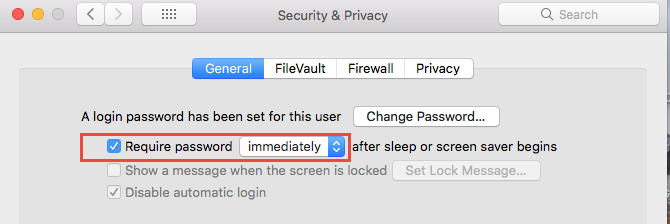
Click the lock icon to save the change.